
- November 30, 2021
- By Ramin Rakhamimov
- 9 min read
The Case for Linux as Your Main Driver
Why Linux is a developer's Swiss Army knife: tiny tools that do one job well, ZSH, Vim, tiling window managers, and high-quality free software.
COMMAND LINE POWER
Learn to Love the Shell
In short
- Linux shell tools let you combine small utilities into powerful commands, keeping your skills relevant and eliminating the need for proprietary software.
- Vim, ZSH, and tiling window managers let you work faster by using keyboard shortcuts instead of clicking, dragging, and resizing windows.
- Linux runs faster, uses fewer resources, and powers 67% of servers, making it a strong choice for daily desktop use with rare exceptions handled by Wine, VMs, or dual boot.
Whether you need to convert 1,000 images to a different format, sync up code between servers, or manipulate text or files in any way imaginable - the shell is your Swiss Army knife. Linux is based on the philosophy of creating tiny tools that do one job and they do it well. Take any combination of these tools, pipe them together and you can pretty much conquer any task.
To do the same on other platforms would require you to install some proprietary tool, that you most likely have to pay for, requiring you to learn new skills that are soon to become obsolete. With Linux, once the tool is mastered, you can use and reuse it over and over - keeping your skillset constantly relevant.
Examples
# refactor a variable in the entire project directory
$ find . -exec sed -i 's/badVariable/goodVariable/g' {} \;

# sync up an entire directory with the remote version
$ rsync -avz ~/projects/myCoolApp me@example.org:projects/myCoolApp

# go two levels deep into a directory,
# and update an AWS service for each name found at this level of the
# directory tree using the file name as an argument to the AWS service
$ echo "Updating dependency layer for all functions"
$ find controllers -maxdepth 2 -mindepth 2 -type d \
    | sed -e 's/controllers\/.*\///g' \
    | xargs -I {} aws lambda update-function-configuration \
        --function-name {} \
        --layers $latest_layer


# find the five largest files (by line count) in a directory tree (taken from page 148 of The Pragmatic Programmer: your journey to mastery, 20th Anniversary Edition)
$ find . -type f | xargs wc -l | sort -n | tail -6 | head 5
BETTER BASH
Experiment With ZSH
Bash is great, but ZSH is even greater. Install Oh My ZSH to get started.
ZSH gives you the following perks that enhance your shell experience:
- Maintains a live history of commands that’s available between current terminal windows.
- Shell themes.
- WD - typing in cd several times can get annoying. WD lets you “bookmark” a directory, and get to it later:
$ cd /some/long/directory/in/my/project $ wd add fav_dir $ wd fav_dir # later in the day - last-working-dir - opening a new terminal window automatically cd’s to the last working directory.
Check out Oh My Zsh’s plugin directory to see what else you might find beneficial for your workflow.
[https://github.com/ohmyzsh/ohmyzsh/wiki/Plugins]
TEXT EDITOR
Use Vim
Say what you will about your favorite text editor; the productivity gains provided by using a keyboard-based editor is unparalleled. There’s a new developer-favorite editor released every several years, but Vim still seems to be on the top list even though the first version came out in 1991. That should say something about its power and potential.
Here are just some of the things you can do with Vim.
- Jump to the next word:
w. - Jump to the previous word:
b. - Delete the entire line:
dd. - Delete from cursor until the end of the line
D. - Delete from cursor until beginning of line
d0ord^. - Delete the next 5 lines:
d5d. - Cut a selection and paste it in a different location:
d5d+p. - Mark a file location for quickly jumping back to it:
ma. - Go to beginning of file:
gg. - Go to end of file:
G. - Delete from current line until the end of file:
dG. - Delete from current line until the beginning of file:
dgg. - Go to a certain line number
55G.
In keeping with the spirit of Linux, once you know how to use a command you can modify it with modifiers such as numbers, line markings, etc.
Vim’s real power is unlocked with the use of plugins. Check out Vim Awesome for installation information for the most popular plugins.
Here’s a portion of my .vimrc config file that automatically clones and installs my Vim plugins via Vundle.
set rtp+=~/.vim/bundle/Vundle.vim
call vundle#begin()

Plugin 'VundleVim/Vundle.vim'
Plugin 'wincent/command-t'  "" fuzzy find files in your entire project directory
Plugin 'dense-analysis/ale' "" for code linting
Plugin 'valloric/matchtagalways'
Plugin 'scrooloose/nerdtree' "" file system explorer
Plugin 'ycm-core/YouCompleteMe' ""  fuzzy-search code completion engine
Plugin 'ervandew/supertab' "" Autocomplete in insert mode
Plugin 'pangloss/vim-javascript' "" javascript syntax highlighting and indentation

call vundle#end()
filetype plugin indent on
Need some more motivation to learn VIM? Play a game: https://vim-adventures.com/.
COMMUNITY HELP
Use an IRC client
Half of the job of a software developer involves looking up reference documents and searching for solutions for technical problems. Luckily, there’s an entire world of highly skilled volunteers that are willing to help out with any sort of technical problem you might encounter - free of charge. The world I am talking about is IRC.
Screen is nifty tool that allows you to run an app in the background even after you log out. Screen can even move your running app into a different terminal window.
Fire up your Linux terminal and install screen and irssi:
$ pacman -S screen irssi
Connect to the Freenode server:
$ screen irssi /connect irc.freenode.net
Look up a channel that’s appropriate for your question. Some of the channels that I frequent are:
- ##javascript - ask any JS related question
- #archLinux - get help archLinux related questions
- #hardware - get help with installing new computer hardware
- #postgres - get help with those complex SQL queries
- #nginx - get help with configuring nginx
- #haskell - when feeling that itch
- #c++/#c - to remember the good ol’ days
To join a channel, simply type:
/join ##javascript
The great thing about IRC is that people are usually available. You can get an answer right away without needing to wait a day or more for you StackOverflow/forum question to get an answer.
LAYOUT CONTROL
Use a Tiling Window Manager
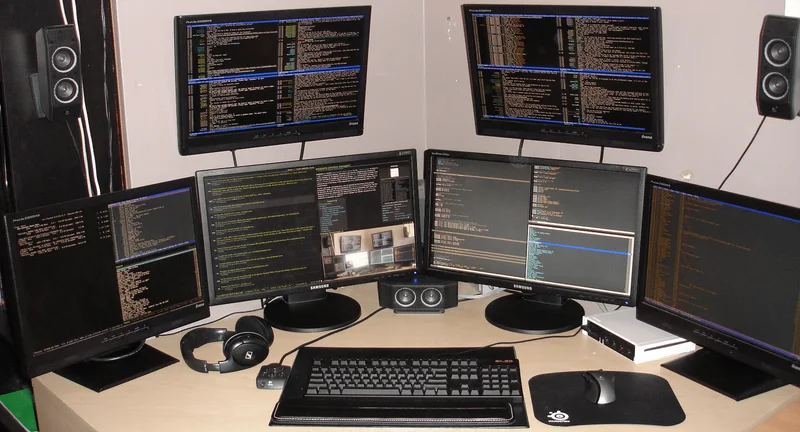
But Ramin, I can do all of the above on MacOS and Windows (with Cygwin)! The MacOS ports of the UNIX apps are not always standard and have their quirks. The Windows ports are even worse with a slow and usually buggy experience.
But that’s not my point here. With Linux, you have the ability to customize every tiny aspect of your workflow to maximize your productivity.
Case in point - use a tiling window manager. Gnome and KDE are great, but they just try to mimic MacOS and Windows. To get the real power of a Linux environment, you have to go with a tiling window manager. There are quite a few that you can experiment with:
- Xmonad - written in Haskell (uses a Haskell config file).
- awesome - written in C (uses a Lua config file).
- i3 - written in C and is my personal favorite (uses a plaintext config file).
Clicking and pointing is ineffecient. Dragging, resizing, and reorganizing your windows is ineffecient. A tiling window manager solves all these problems by automating the process. When you open a new window, the WM automatically “snaps” the new window into the next available slot. All windows are seen at once - no more alt-tabbing to the point of carpal tunnel.
SPEED & EFFICIENCY
Embrace Keyboard Shortcuts
The fastest way to fire up a terminal on MacOS is ⌘ + Space + "term" + Enter. On Windows, it’s either a taskbar shortcut or Window Key + "Power" + enter. Most Linux window managers come with complete customization of keyboard shortcuts built right in.
Here’s part of my i3 config for setting up keyboard shortcuts:
# applications
bindsym $mod+z exec urxvt
bindsym $mod+p exec nautilus --no-desktop
bindsym $mod+Shift+z exec xscreensaver-command -lock && xset dpms force off
bindsym $mod+x exec chromium
bindsym $mod+Shift+p exec sudo poweroff

# focus windows
bindsym $mod+Left focus left
bindsym $mod+Down focus down
bindsym $mod+Up focus up
bindsym $mod+Right focus right

# move windows
bindsym $mod+Shift+Left move left
bindsym $mod+Shift+Down move down
bindsym $mod+Shift+Up move up
bindsym $mod+Shift+Right move right

# split in horizontal orientation
bindsym $mod+h split h

# split in vertical orientation
bindsym $mod+v split v

# kill focused window
bindsym $mod+c kill

# enter fullscreen mode for the focused container
bindsym $mod+Shift+f fullscreen

# toggle floating mode of current window
bindsym $mod+f floating toggle

# switch to workspace
bindsym $mod+1 workspace 1
bindsym $mod+2 workspace 2
bindsym $mod+3 workspace 3
bindsym $mod+4 workspace 4
bindsym $mod+5 workspace 5
bindsym $mod+6 workspace 6
bindsym $mod+7 workspace 7
bindsym $mod+8 workspace 8
bindsym $mod+9 workspace 9
bindsym $mod+0 workspace 10

# move focused container to workspace
bindsym $mod+Shift+1 move container to workspace 1
bindsym $mod+Shift+2 move container to workspace 2
bindsym $mod+Shift+3 move container to workspace 3
bindsym $mod+Shift+4 move container to workspace 4
bindsym $mod+Shift+5 move container to workspace 5
bindsym $mod+Shift+6 move container to workspace 6
bindsym $mod+Shift+7 move container to workspace 7
bindsym $mod+Shift+8 move container to workspace 8
bindsym $mod+Shift+9 move container to workspace 9
bindsym $mod+Shift+0 move container to workspace 10
- open a terminal:
Alt + z - open a file browser:
Alt + p - lock the screen:
Alt + Shift + z - open up chrome:
Alt + x - turn off the machine:
Alt + Shift + p - kill the currently focused window:
Alt + c - The rest of the shortcuts are for manipulating windows:
- move windows left, right up or down - works great with multiple monitors:
Alt + Shift + Left/Right/Up/Down - focus a window to the left, right, up or down of the current window:
Alt + Left/Right/Up/Down - float windows - makes windows function as traditional boring draggable/resizable windows:
Alt + f - put a window in full screen mode:
Alt + Shift + f - move a window to another workspace/monitor:
Alt + Shift + 0/1/2/3... - make the current monitor show a different workspace:
Alt + Shift + 0/1/2/3...
- move windows left, right up or down - works great with multiple monitors:
This means that I can get from 0 to 60 in under 2 seconds: login, Alt + z (opens a terminal), type vim, Alt + x (opens Chrome) and my workstation is ready for coding. If I need to put something in the “background” but would like to still monitor the ouput (such as a dev web server), I move it to the far right with Alt + Shift + Right * N times.
To customize keyboard shortcuts on MacOS, you would need to purchase some inferior app. Windows? Your mileage may vary.
OPEN SOURCE TOOLS
Linux Encourages the Use of High Quality Free Software
FLEXIBILITY & CHOICE
Experiment With Different Distros
Don’t like Ubuntu? Try Gentoo. Gentoo is taking too much time to compile? Switch to Arch Linux where all packages come as precompiled binaries. Compile your own kernel to get the most out of your architecture or just use the one provided by your distro.
Google claims that today 67% of servers that powers our internet are run on Linux. There’s a reason Linux is chosen: it runs faster, is more robust, is less resource hungry, more secure, etc. Why not take all those benefits and use them in your daily desktop environment?
True, there are scenarios where you need to use a certain app that’s not yet ported to Linux. For those (rare) cases you can either: search for a web-based solution, try your luck with running the app on Linux via Wine, run the app inside a VM or dual boot. I have personally been able to use Linux as my main driver for 98% of my work with much success for the past 10 years.
You can view all of my linux config files at: https://github.com/ramin32/Linux-Configs
KEEP READING
Related Resources

Case Study
Custom Scheduling Platform for a National Specialty Pet Retailer
A new platform on AWS Lambda, API Gateway, and Aurora cut page load from 20 seconds to 1.5 and adds $800K a week in completed grooming appointments.
Read the pet retailer case study
Case Study
Leveraging GenAI to Empower JBS Dev's Sales and Delivery Teams
How JBS Dev used generative AI to share project knowledge between its sales and delivery teams and improve internal collaboration.
Read the case study
Case Study
Custom Retail Storefront for Moda Operandi
The new site and mobile app launched, and first-year revenue beat the forecast.
Read the Moda Operandi case study
